
Adjust the volume
Increase or decrease the intensity by dragging the level bar up or down.

Split volume tracks
Tap the icon to split the volume tracks and adjust each hearing aid individually.

Adjust balance
Modify the sound balance by moving the level bar up or down.

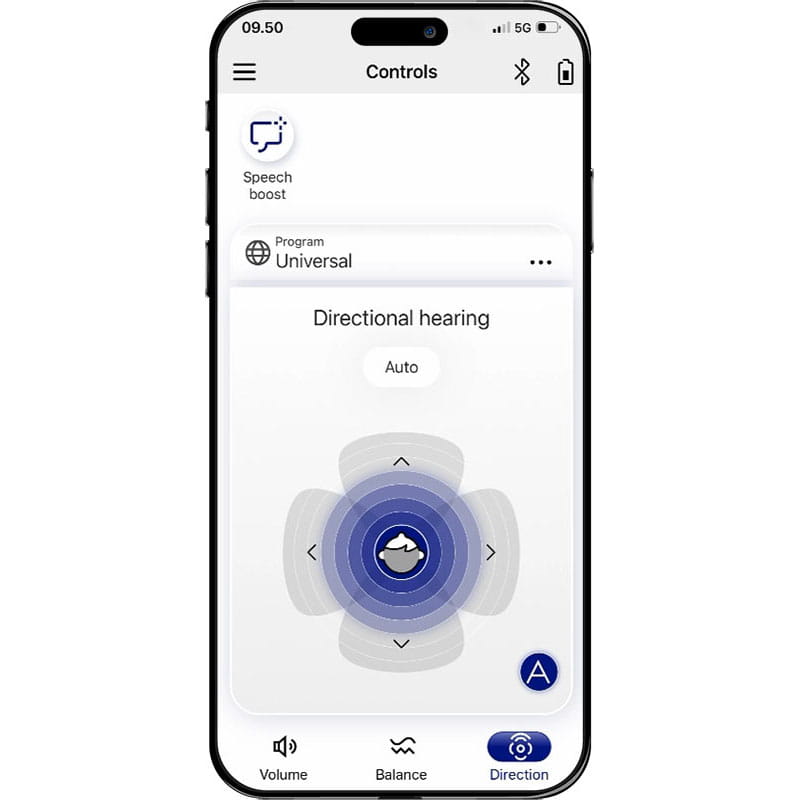
Set directional hearing
Set the directional hearing of your hearing aids according to your environment.
Steer the microphone range by dragging the focus.
Select the front, left, right, or back position to focus on the corresponding direction.

Directional hearing automatic mode
Tap the “A” icon to return to automatic mode.

Select a hearing aid program
From the main screen, access the hearing programs preset by your hearing care professional.
Tap a program name to select it.

Battery status and direct streaming
Tap the icons in the top right corner to check the battery and Bluetooth connection status.


FAQs
Yes! The Audio Service app is completely free to download and use.
Yes! You can download the Audio Service app quickly by scanning QR codes that link directly to the official app stores.
Look for the QR codes in:
- Hearing aid user manual
- The Audio Service app guide
- Marketing material or brochures
Use a smartphone camera or a QR code scanner app to scan it. The QR code will take you to the correct app version in the App Store (iOS) or Google Play (Android).
No, the Audio Service app should only be downloaded from official sources such as the Google Play Store.
The app works both with and without Bluetooth. Some Audio Service hearing aids include Bluetooth connectivity. When these hearing aids are paired with the app via Bluetooth, additional app features may become available.
If Bluetooth is not enabled or the hearing aids are not Bluetooth-compatible, you can still use the app. In this case, the app communicates with the hearing aids using encoded high-frequency sound signals to adjust settings such as volume and listening programs.
You can easily manage streaming audio (calls, music) and hearing aid volume from the Audio Service app:
Adjust hearing aid volume
- Open the Audio Service app.
- On the home screen, use the Volume slider to increase or decrease the overall volume for both hearing aids.
- For separate control: Tap the bilateral icon, then adjust Left and Right volumes individually.
Control streaming volume
- During a call or while playing music, open the app.
- Use the Streaming Volume slider (separate from microphone volume) to control the level of streamed audio without changing environmental sound volume.
Fine-tune sound
- Tap Sound Balance to adjust Bass and Treble for a more comfortable listening experience during streaming.
The Audio Service app also allows program changes, mute function, and customized sound profiles. For full functionality, ensure Bluetooth is on and the hearing aids remain within range of the phone.
Yes, the Audio Service app can work without an internet connection for most day-to-day hearing aid controls:
- Volume adjustments
- Program changes
- Streaming volume and sound balance
- Basic hearing aid settings
Internet is needed to download the app and keep it up to date.
Connection problems are usually caused by Bluetooth or pairing settings. Here’s what to check:
Verify Bluetooth status
- Make sure Bluetooth is ON in the phone settings.
- Keep the phone within 1–2 meters of the hearing aids.
Restart devices
- Turn hearing aids off and on:
Rechargeable – place the hearing aids in the charger for 10 seconds, then remove them from the charger.
Battery – open and close the battery door. - Restart the smartphone.
Re-pair the hearing aids
- Go to Bluetooth settings → Remove/Forget the hearing aids.
- Put the hearing aids in pairing mode (automatic after restart).
- Open the Audio Service app and follow pairing instructions.
Check permissions
- Android: Allow Bluetooth, Location, and Nearby Devices access.
- iOS: Allow the app to use Bluetooth in Settings → Privacy → Bluetooth.
Update software
- Install the latest Audio Service app update from the App Store or Google Play.
- Ensure the phone OS is iOS 15+ or Android 8.0+.
If the app only detects one hearing aid or none at all, try these steps to fix the pairing:
Check Bluetooth and proximity
- Make sure Bluetooth is ON in your smartphone settings.
- Keep both hearing aids close to the phone (within 1–2 meters).
Restart both hearing aids
- Rechargeable models: Place hearing aids in the charger for 10 seconds, then remove.
- Battery models: Open the battery door, wait a few seconds, then close.
Forget and re-pair devices
- On the phone: Go to Settings → Bluetooth → Forget both hearing aids.
- Put both hearing aids in pairing mode (automatic after restart).
- Open the Audio Service app and follow the pairing prompts for both aids.
Check permissions
- Android: Enable Location and Nearby Devices permissions.
- iOS: Allow the app access to Bluetooth in Settings > Privacy.
Update software
- Install the latest version of the Audio Service app.
- Ensure your smartphone software is iOS 15+ or Android 8.0+.
If the Audio Service app indicates that your device is not supported, make sure you are using a compatible Audio Service hearing aid and that your smartphone meets the app's system requirements. Check that both your hearing aids and the app are up to date.
If the issue persists, consult the compatibility information provided by Audio Service or contact your hearing care professional for assistance. Older hearing aid models may not support app connectivity.
Yes. If your hearing aids or smartphone are not compatible with the Audio Service app, you may still be able to control your hearing aids using their built-in controls or compatible accessories, such as remote controls. Contact your hearing care professional to learn which control options are available for your specific hearing aid model.
Yes. Depending on the hearing aid model, you may have the following options:
Physical controls on the hearing aids
Most Audio Service hearing aids feature built-in push buttons for changing listening programs and adjusting the volume directly on the device.
Remote accessories
The Remote Control allows to adjust the volume and switch programs conveniently without using a smartphone.
Want more support? These sections can help.

Pairing of hearing aids
Learn how to pair your hearing aids with different Bluetooth protocols.

Support for
accessories
Learn how to maintain, pair, and manage remote controls, streamers, and chargers.

Document downloads
Download user guides, service documents, and more from our document portal.