Pairing of R Li T BC 8 hearing aids
R Li T BC 8 hearing aids use Classic Bluetooth for streaming audio.
Before You Start (Important Preparation)
To avoid connection issues, follow these preparation steps:
- Turn off Bluetooth on your phone
- Power off your phone completely, then restart it
- Turn Bluetooth back on once the phone is fully rebooted
- Disable Bluetooth on any nearby devices that were previously connected to the hearing aids
Note: If your hearing aids have never been paired before, you can skip the steps related to removing existing connections.
Step-by-step pairing instructions
- Restart your hearing aids
Place the devices in the charger, then turn them on again by removing them from the charger.
The hearing aids will automatically enter pairing mode for up to three minutes. - Open Bluetooth settings
Go to Settings > Connections > Bluetooth or Settings > Connected Devices - Remove old pairings (if applicable)
Locate your hearing aids in the device list
Tap the gear icon next to the device name
Select Unpair or Forget and confirm
Repeat for all hearing aid entries - Turn your hearing aids back on
Close battery doors or remove from charger - Scan for available devices
Tap Scan or Pair new device on your phone - Select your hearing aid
When it appears (only one device may be listed), tap to connect - Confirm pairing
Accept the pairing request by tapping Pair - Verify the connection
The hearing aids will appear as connected in your Bluetooth menu
A battery level indicator may be displayed
Your hearing aids are now paired and ready for audio streaming on Android.
Optional: Rename the hearing aids
To personalize the device name in the Bluetooth settings:
- Tap the gear icon next to the hearing aid name
- Select the edit (pencil) icon
- Enter a new name and save
Before You Start (Important Preparation)
To avoid connection issues, follow these preparation steps:
- Turn off Bluetooth on your phone
- Power off your phone completely, then restart it
- Turn Bluetooth back on once the phone is fully rebooted
- Disable Bluetooth on any nearby devices that were previously connected to the hearing aids
Note: If your hearing aids have never been paired before, you can skip the steps related to removing existing connections.
Step-by-step pairing instructions
- Restart your hearing aids
Place the devices in the charger, then turn them on again by removing them from the charger.
The hearing aids will automatically enter pairing mode for up to three minutes. - Open Bluetooth settings
Go to Settings >Bluetooth - Remove old pairings (if needed)
Under My Devices, find your hearing aids
Tap the "i" icon next to the name
Select Forget This Device and confirm
Repeat for all entries - Prepare for pairing
Scroll to Other Devices and wait for available devices to appear - Turn your hearing aids back on
Close battery doors or remove from charger - Select your hearing aid
Tap the device name when it appears under Other Devices - Check connection status
The hearing aids will move to My Devices and show as Connected
Your hearing aids are now connected and ready for streaming audio on iPhone or iPad.
Optional: Rename the hearing aids
To personalize the device name in the Bluetooth settings:
- Tap the "i" icon next to the hearing aid
- Select Name
- Enter a new name and tap Done
Hearing aids prioritize the most recently connected device. Switching devices requires disconnecting from the current one first. Manual selection is needed when the last device is not available.
R Li T BC 8 hearing aids automatically reconnect to the last device they were connected to when powered on, such as when removed from the charger.
Switching to a different connected device
If your hearing aids connect to a device you don’t want to use, you can easily switch to another paired device:
- Open the Bluetooth settings on the currently connected device
- Turn off Bluetooth on that device
- On the second device, go to its Bluetooth menu
- Select your hearing aids from the list of paired devices to connect
Once connected, the second device becomes the new default, and the hearing aids will automatically reconnect to it the next time they are powered on.
Connecting when the last device is unavailable
If the most recently used device is not nearby or has Bluetooth turned off, the hearing aids will not automatically connect to another saved device.
To connect manually:
- Open the Bluetooth settings on your preferred device
- Select your hearing aids from the list of previously paired devices
The connection will be established, and this device will become the new most recently used device.
There are two different connections that can occur when setting up the R Li T BC 8 hearing aids with a phone.
First, there is the streaming connection that is completed through a Bluetooth Classic connection. This pairing will be done strictly through the Bluetooth menu of the phone and will result in one line item once pairing is complete. This is true whether you have been fit with one or two hearing aids.
Next, there is the Audio Service app's connection that is completed through a Bluetooth Low Energy (BLE) connection. This pairing will be done strictly through the Audio Service app when you first set up the app through the Bluetooth option. If you are fit with one hearing aid, after the app is set up, there will be one related item in the phone’s Bluetooth menu (in addition to the streaming connection mentioned above). If the fitting is for two hearing aids, there may be up to two related line items (phone dependent). In other words, if the streaming and Audio Service app connections are both completed, there may be up to three total hearing aid-related items in the Bluetooth menu (1 for the streaming connection, 2 for the app’s connection). The names of app’s connection items that show up will be different than that of the item related to the audio streaming connection (assuming current firmware in the hearing aids). Some phones will append “LE_” at the beginning of the app’s connection name. Others may show a string of numbers and characters (e.g. 46:EB:FD:C6:E7:03). This is all expected behavior.
The two types of connections have nothing to do with each other. For streaming purposes, only the streaming connection matters (i.e. that item must have a Connected status for audio streaming to work). It is recommended to ignore the Audio Service app’s connection items and their connectivity statuses as seen in the phone’s Bluetooth menu for day-to-day usage. Those items should only be interacted with if the Audio Service app needs to be reset or reconnected to the hearing aids. The app’s Bluetooth connection status is displayed in the app itself (top right corner of the remote control page).
We strongly recommend using our TV Sound accessory to connect to other devices such as televisions to optimize audio quality and reliable connection.
If the television supports direct audio streaming, it could be connected directly to the hearing aids for audio transmission.
How to connect hearing aids to a TV
To pair your hearing aids successfully, follow these steps:
- Turn off Bluetooth on any devices that were previously connected to the hearing aids
- Restart the hearing aids by turning them off and back on to activate pairing mode
- Open the Bluetooth settings on the TV
- Follow the instructions in the TV’s user manual to pair a Bluetooth audio device
- Select the hearing aids when they appear in the list of available devices
Once connected, audio from the TV should stream directly to your hearing aids.
Important considerations
- Some TVs may automatically mute their internal speakers when a Bluetooth device is connected
- Whether you can use both the TV speakers and hearing aids at the same time depends on the TV’s hardware and software capabilities
- For detailed information, check the TV’s user guide or contact the manufacturer’s support team
What to do if pairing or streaming fails
If the TV cannot connect to the hearing aids or audio streaming does not work, the issue may be related to Bluetooth compatibility or hardware limitations.
In this case, using a dedicated accessory such as the TV Sound transmitter is recommended.
Benefits of using TV Sound
- Provides a stable and reliable audio connection
- Designed specifically for hearing aid streaming
- Often allows simultaneous sound output through both the TV speakers and hearing aids
- Typically works via the TV’s audio output ports (e.g., optical or AUX), which many modern TVs support
Pairing with an iPhone
Prepare your iPhone for direct streaming:
- Open the Settings module on your iPhone.
- Make sure the Bluetooth toggle is ON.
- Go to Accessibility
- Scroll down to the Hearing Devices section.
Prepare your hearing aids:
- Switch your Audio Service hearing aids OFF, either by putting them in the charger or holding the onboard button for about 3 seconds.
- Then turn them ON again by removing them from the charger or pressing once again the button.
- The devices will enter pairing mode for approximately 3 minutes.
- Look for your hearing aids in the list of available devices.
Pair with your hearing aids:
- Tap on the name of your hearing aids as they appear in the list.
- Approve any pop-up pairing requests for each device, left and right.
- Once your hearing aids are paired, you can review and adjust the settings.
Your hearing aids are now ready to receive phone calls, music, or audio from videos directly from your iPhone.
Prepare your iPhone for direct streaming:
- Open the Settings module on your iPhone.
- Go to Bluetooth.
- Make sure the Bluetooth toggle is ON.
Prepare your hearing aids:
- Switch your Audio Service hearing aids OFF, either by putting them in the charger or holding the onboard button for about 3 seconds.
- Then turn them ON again by removing them from the charger or pressing once again the button.
- The devices will enter pairing mode for approximately 3 minutes.
- Look for your hearing aids in the list of available devices.
Pair with your hearing aids:
- Tap on the name of your hearing aids as they appear in the list.
- The pairing process will start automatically.
- Once pairing is complete, your hearing aids will show as "Connected“.
Your hearing aids are now ready to receive phone calls, music, or audio from videos directly from your iPhone.
After pairing your hearing aids with your iPhone, proceed to pair them with the Audio Service app.
Set up the Audio Service app:
- Download the app from the App Store.
- Open the app.
- Select the Bluetooth connection option.
- Follow the on-screen instructions.
Prepare your hearing aids:
- Switch your Audio Service hearing aids OFF, either by putting them in the charger or holding the onboard button for about 3 seconds.
- Then turn them ON again by removing them from the charger or pressing once again the button.
- The devices will enter pairing mode for approximately 3 minutes.
- Select your hearing aids as they appear in the app.
Confirm connection:
- Approve any pop-up pairing requests for each device, left and right.
- A reminder to connect using the MFi protocol will appear. Refer to the instructions on “How to pair your Audio Service hearing aids to your iPhone”.
- The app will confirm when the process is complete.
- If TeleCare is available, enter your code or tap "Set up later“.
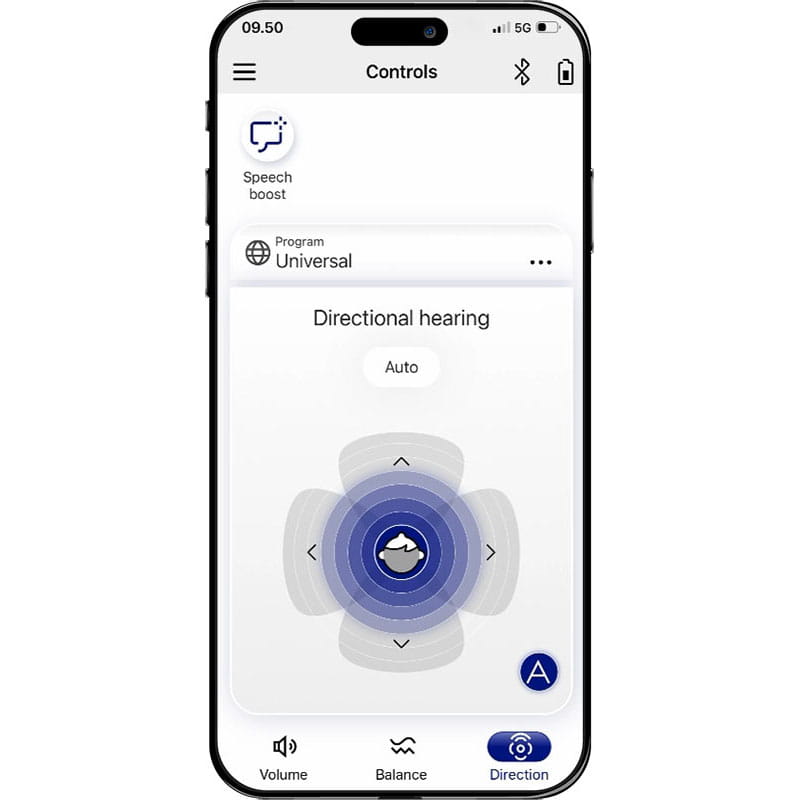
You can now use the Audio Service app to adjust volume, sound balance, directionality, change programs, and access additional features.
Pairing with an Android device
Set up the Audio Service app:
- Download the app from Google Play Store.
- Open the app.
- Select the Bluetooth connection option.
- Follow the on-screen instructions.
Prepare your hearing aids:
- Switch your Audio Service hearing aids OFF, either by putting them in the charger or holding the onboard button for about 3 seconds.
- Then turn them ON again by removing them from the charger or pressing once again the button.
- The devices will enter pairing mode for approximately 3 minutes.
- Select your hearing aids as they appear in the app.
Confirm connection:
- Approve any pop-up pairing requests for each device, left and right.
- The app will confirm when the process is complete.
- If TeleCare is available, enter your code or tap "Set up later“.
You can now use the Audio Service app to adjust volume, sound balance, directionality, change programs, and access additional features.
Prepare your Android smartphone for direct streaming:
- Open the Settings module on your Android.
- Go to Bluetooth.
- Make sure the Bluetooth toggle is ON.
Prepare your hearing aids:
- Switch your Audio Service hearing aids OFF, either by putting them in the charger or holding the onboard button for about 3 seconds.
- Then turn them ON again by removing them from the charger or pressing once again the button.
- The devices will enter pairing mode for approximately 3 minutes.
- Look for your hearing aids in the list of available devices.
Pair with your hearing aids:
- Tap on the name of your hearing aids as they appear in the list.
- The pairing process will start automatically.
- Approve any pop-up pairing requests for each device, left and right.
- Once pairing is complete, your hearing aids will show as "Connected“.
Your hearing aids are now ready to receive phone calls, music, or audio from videos directly from your Android device.
Other pairing options
Set up the Audio Service app:
- Download the app from the respective application store.
- Open the app.
- Select the Bluetooth connection option.
- Follow the on-screen instructions.
Prepare your hearing aids:
- Switch your Audio Service hearing aids OFF, either by putting them in the charger or holding the onboard button for about 3 seconds.
- Then turn them ON again by removing them from the charger or pressing once again the button.
- The devices will enter pairing mode for approximately 3 minutes.
- Select your hearing aids as they appear in the app.
Confirm connection:
- Approve any pop-up pairing requests for each device, left and right.
- The app will confirm when the process is complete.
- If TeleCare is available, enter your code or tap "Set up later“.
You can now use the Audio Service app to adjust volume, change programs, and access additional features.
Open the settings preview on your computer to connect your hearing aids for direct streaming:
- Go to Bluetooth.
- Make sure the Bluetooth toggle is ON.
Prepare your hearing aids:
- Switch your Audio Service hearing aids OFF, either by putting them in the charger or holding the onboard button for about 3 seconds.
- Then turn them ON again by removing them from the charger or pressing once again the button.
- The devices will enter pairing mode for approximately 3 minutes.
- Look for your hearing aids in the list of available devices.
Pair with your hearing aids:
- Tap on the name of your hearing aids as they appear in the list.
- The pairing process will start automatically.
- Approve any pop-up pairing requests for each device, left and right.
- Once pairing is complete, your hearing aids will show as "Connected“.
Another way to pair your hearing aids and check the connection status is via the Settings module on your computer:
- Go to Bluetooth and devices to handle connections from there.
- Your hearing aids will appear in the list of connected devices.
Your hearing aids are now ready to receive calls, music, or audio from videos directly from your computer or connected device.
Once pairing is complete, you can quickly connect and switch between streaming sources:
- To begin with, pair your hearing aids with your first Bluetooth source, such as a phone or tablet.
- Follow the pairing instructions for the specific type of equipment.
- Once pairing is complete, this device will be able to stream audio directly to your hearing aids.
Connect to a second device:
- First, turn off Bluetooth on the device that is currently connected.
- Next, follow the pairing process again on the new phone, tablet, or computer.
- Once pairing is successful, your hearing aids are ready to receive audio from this new connection.
Pair additional devices:
- You can pair more devices in the same way.
- Repeat the pairing steps for each new connection.
Switch between paired devices for streaming:
Once multiple devices are paired, your hearing aids can only stream audio from one source at a time. To select which connection is active for streaming, simply follow these instructions:
- Turn off the Bluetooth on the currently connected device.
- Turn on Bluetooth on the phone, tablet, or computer you wish to use.
- Your hearing aids will automatically link with the available source when it's in range.
- Depending on the device, it may be required that you tap on the name of the hearing aids in the list of available devices.
Downloads
- How to pair your Audio Service hearing aids for direct streaming Uploaded | PDF | 1.22 MB


FAQs
To switch Audio Service Bluetooth hearing aids from one device (e.g., smartphone or tablet) to another, follow these steps:
1. Unpair from the current device
On iOS (Apple):
- Go to Settings → Bluetooth.
- Find your hearing aids in the device list.
- Tap the info icon (i) and select Forget This Device.
On Android:
- Go to Settings → Connections → Bluetooth.
- Select your hearing aids.
- Choose Unpair or Forget.
2. Reboot the hearing aids
Turn both hearing aids off and on again (or place them in the charger and remove them after a few seconds if they’re rechargeable).
3. Pair with the new device
- Activate Bluetooth on the new device.
- Put hearing aids into pairing mode (typically activated automatically when turned on).
- On the new device, select your hearing aids from the Bluetooth list and confirm pairing.
For full functionality and remote control, also install the Audio Service app:
If issues persist, reset connections and restart both devices.
Option 1: Pair with a smartphone (app control)
For iOS (iPhone/iPad):
- Turn ON Bluetooth (Settings → Bluetooth).
- Go to Settings → Accessibility → Hearing Devices.
- Restart hearing aids to enter pairing mode:
Rechargeable: Place in charger for 10 sec, then remove.
Battery model: Open & close battery door. - Your hearing aids appear under MFi Hearing Devices.
- Tap to connect and confirm pairing for both left and right.
- Open Audio Service app to enable advanced features.
For Android:
- Turn ON Bluetooth (Settings → Connections → Bluetooth).
- Restart hearing aids (same as above).
- Select hearing aids from the Bluetooth list to pair.
- Open Audio Service app, follow on-screen setup steps.
Option 2: Pair with a remote control
- Restart your hearing aids.
Rechargeable devices: Switch them OFF by putting them in the charger or holding the onboard button. Then turn them ON again by removing them from the charger or pressing once again the button.
Battery driven devices: Open and close the battery door. - Press and hold the Hearing Aid buttons for about 6 seconds (this puts them into pairing mode).
- On the remote control, press the P button briefly (make sure not to hold too long).
- Listen for the confirmation tone from the hearing aids. If tone is heard but pairing fails, retry and make sure you didn’t hold P too long.
- Test volume/program buttons to ensure control works.
Want more support? These sections can help.

Support for the Audio Service app
Learn how to use the Audio Service app to adjust your hearing aid settings.

Bluetooth protocols
Learn more about Bluetooth protocols and the compatibility of Audio Service hearing aids.

Support for
accessories
Learn how to maintain, pair and manage remote controls, streamers, and chargers.